# Introduction II
This week, we will explore the basics of Jupyter Notebooks and Colab notebooks. We will familiarize with the applications and dive right into our first Python programming session!
### Objectives 📍
- Learn how to open Jupyter notebooks locally and create your own Jupyter notebook
- Learn how to open Colab notebooks and create your own notebook
- Learn basic and efficient usage of the Jupyter ecosystem & notebooks
- What is Jupyter & how to utilize Jupyter notebooks
- Ask and answer questions
### Materials 📓
Please see the rendered version of the `jupyter notebook` [Introduction II - jupyter notebooks](https://markovyu.github.io/Python_For_Psychologists_24/introduction/intro_jupyter.html) in the `ToC` on the left.
### Homework 🖥️✍🏽📖
You should create a `jupyter notebook` with
- **mandatory**: `3 different cells`:
- 1 rendered markdown cell within which you name your favorite movie and describe why you like it via
max. 2 sentences
- 1 code cell with an equation (e.g. `1+1`, `(a+b)/(c+d)`, etc.)
- 1 raw cell with your favorite snack
- **optional**: try to include a picture of your favorite animal
- save the notebook and e-mail it to **Markov@psych.uni-frankfurt.de**
Please note that the deadline for the assignment is: **XXX**.
## Open jupyter notebook
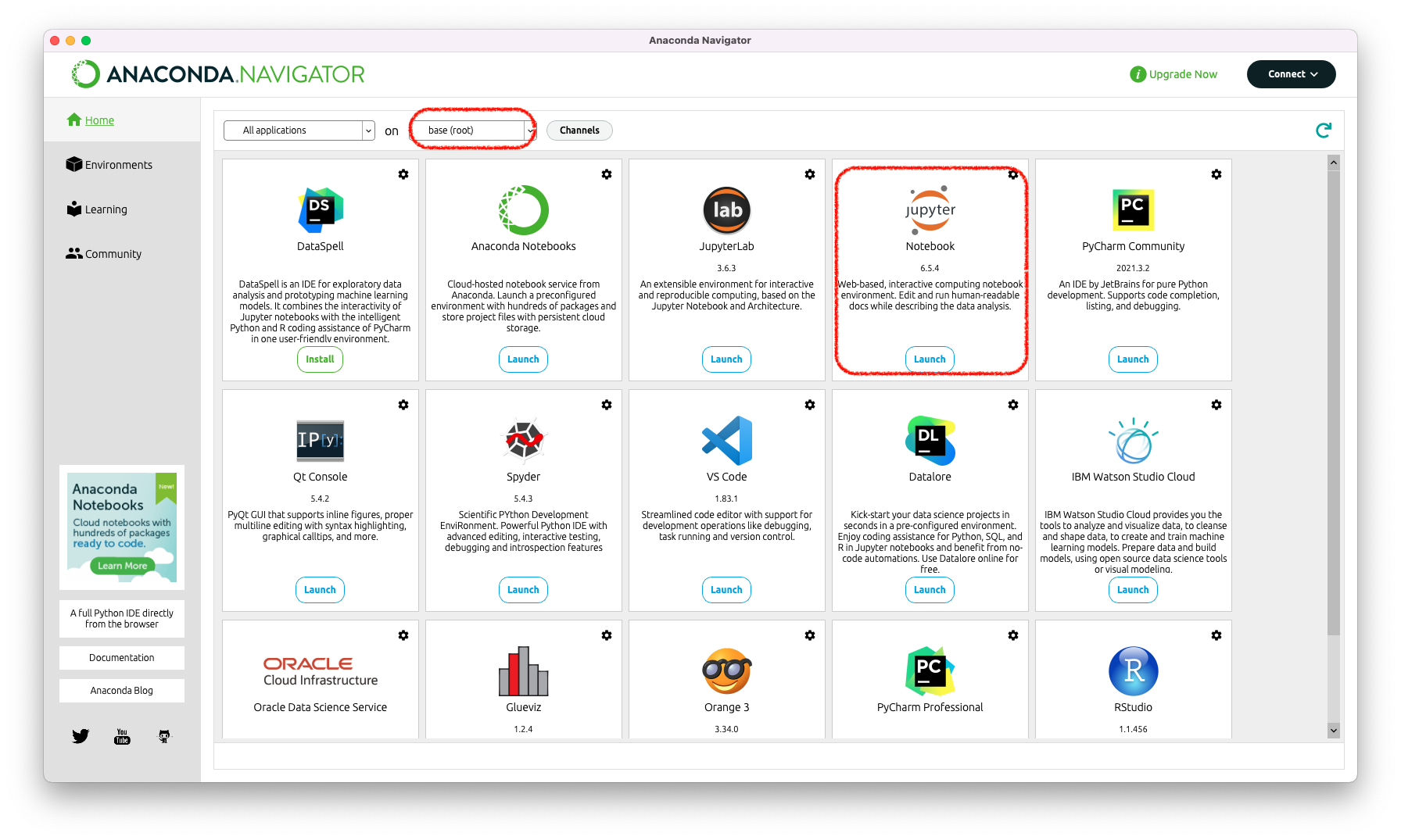
There are different ways to open the program. If you installed Anaconda, you can open the `Anaconda Navigator` and from your `base` envirnoment, jupyter notebooks should have already been installed. Just click on `Launch` and youre ready to go!
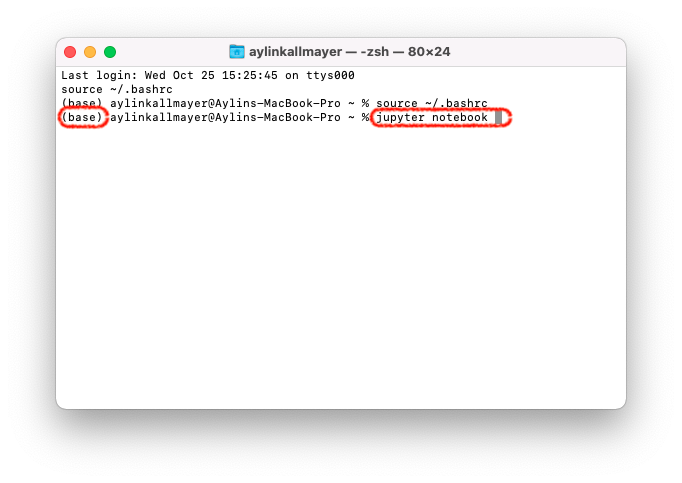
If you installed miniconda, you won't have the `Navigagor`. Instead, what you should do, is open your `Terminal` and type in `jupyter notebook`. Make sure your `base` environment is activated. If you can't see the `(base)` that you see in the picture, type in `conda init` or `conda activate base`.
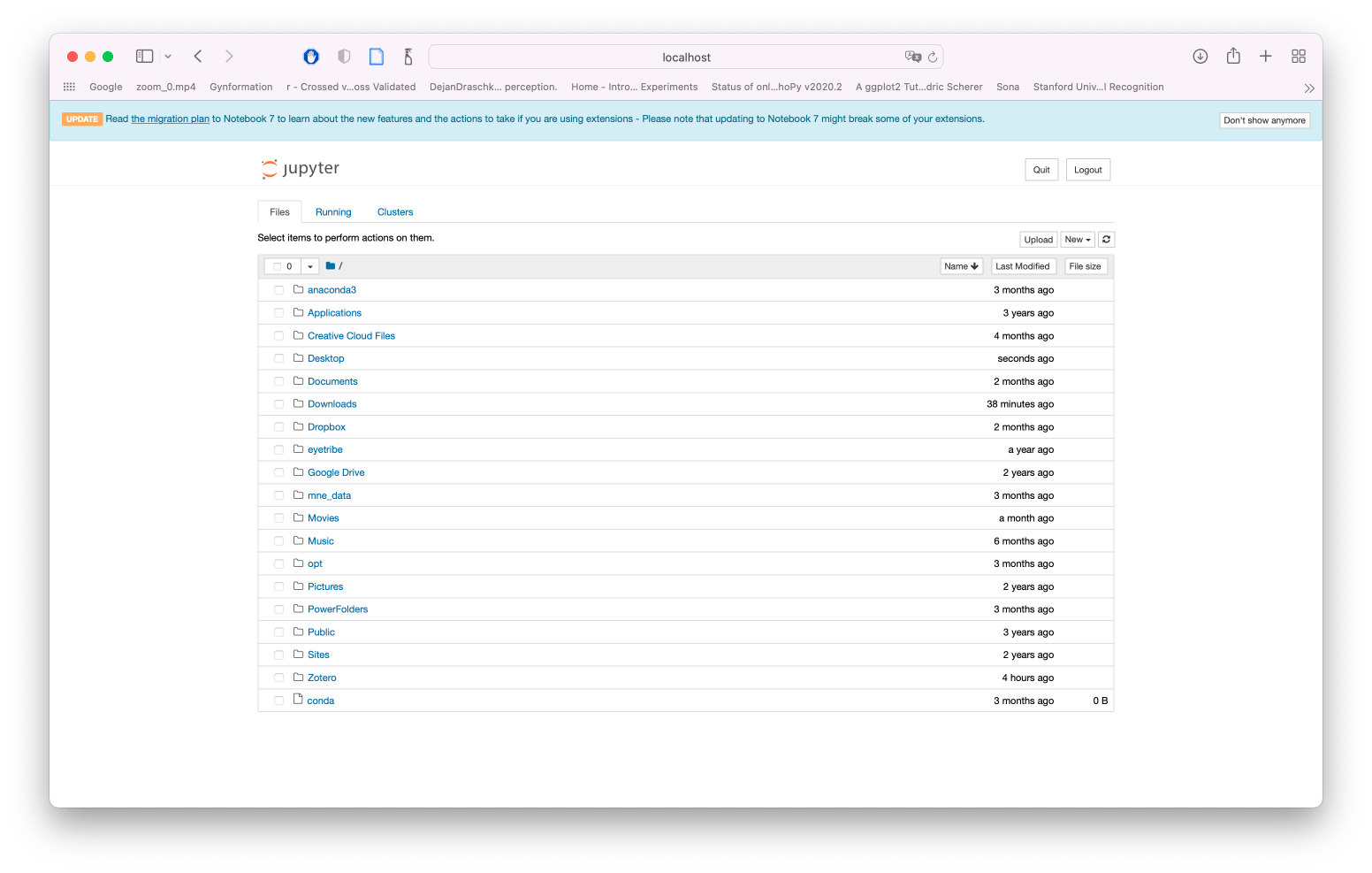
If you start `jupyter notebook` from the terminal, a lot of text will appear in your terminal which has something to do with the server that the notebook is hosted on locally. It should also automatically open a `homepage` on your browser, if it doesn't, copy paste the link from your terminal and open it in your browser.
Your jupyter homepage should look something like this:
## Create your own notebook
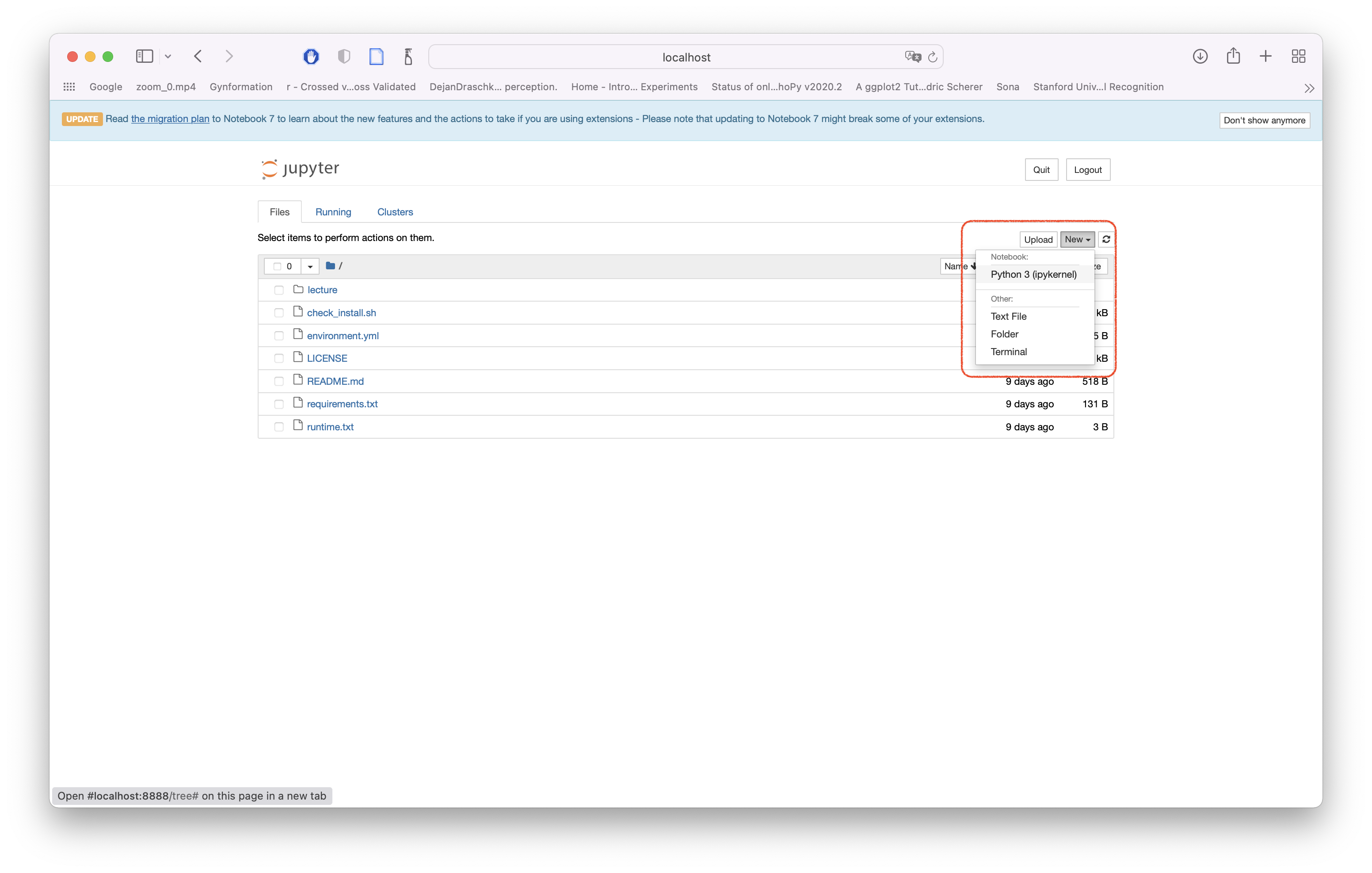
The last thing I want you to do, is open your own notebook and save it. Click on `New` and select `python 3 (ipykernel)`. It will create a new empty notebook for you with a python 3 kernel.
Tada! now you can save this notebook under `File` `save as`. We will go from here next time. If you're eager to explore more, feel free to do so, for example [over here](https://jupyter-notebook.readthedocs.io/en/latest/notebook.html).
## Optional/reading/further materials 📓
- Google Colab intro [file](https://colab.research.google.com/notebooks/intro.ipynb)
- Google Colab features [file](https://colab.research.google.com/notebooks/basic_features_overview.ipynb)
- Google Colab Markdown [file](https://colab.research.google.com/notebooks/markdown_guide.ipynb)
`Fernando Perez`' presentation on `From interactive exploration to reproducible data science: Jupyter` from [NeuroHackademy](https://neurohackademy.org/) 2020.
 If you installed miniconda, you won't have the `Navigagor`. Instead, what you should do, is open your `Terminal` and type in `jupyter notebook`. Make sure your `base` environment is activated. If you can't see the `(base)` that you see in the picture, type in `conda init` or `conda activate base`.
 If you start `jupyter notebook` from the terminal, a lot of text will appear in your terminal which has something to do with the server that the notebook is hosted on locally. It should also automatically open a `homepage` on your browser, if it doesn't, copy paste the link from your terminal and open it in your browser.
Your jupyter homepage should look something like this:
If you start `jupyter notebook` from the terminal, a lot of text will appear in your terminal which has something to do with the server that the notebook is hosted on locally. It should also automatically open a `homepage` on your browser, if it doesn't, copy paste the link from your terminal and open it in your browser.
Your jupyter homepage should look something like this:
 ## Create your own notebook
The last thing I want you to do, is open your own notebook and save it. Click on `New` and select `python 3 (ipykernel)`. It will create a new empty notebook for you with a python 3 kernel.
## Create your own notebook
The last thing I want you to do, is open your own notebook and save it. Click on `New` and select `python 3 (ipykernel)`. It will create a new empty notebook for you with a python 3 kernel.
 Tada! now you can save this notebook under `File` `save as`. We will go from here next time. If you're eager to explore more, feel free to do so, for example [over here](https://jupyter-notebook.readthedocs.io/en/latest/notebook.html).
## Optional/reading/further materials 📓
- Google Colab intro [file](https://colab.research.google.com/notebooks/intro.ipynb)
- Google Colab features [file](https://colab.research.google.com/notebooks/basic_features_overview.ipynb)
- Google Colab Markdown [file](https://colab.research.google.com/notebooks/markdown_guide.ipynb)
`Fernando Perez`' presentation on `From interactive exploration to reproducible data science: Jupyter` from [NeuroHackademy](https://neurohackademy.org/) 2020.
Tada! now you can save this notebook under `File` `save as`. We will go from here next time. If you're eager to explore more, feel free to do so, for example [over here](https://jupyter-notebook.readthedocs.io/en/latest/notebook.html).
## Optional/reading/further materials 📓
- Google Colab intro [file](https://colab.research.google.com/notebooks/intro.ipynb)
- Google Colab features [file](https://colab.research.google.com/notebooks/basic_features_overview.ipynb)
- Google Colab Markdown [file](https://colab.research.google.com/notebooks/markdown_guide.ipynb)
`Fernando Perez`' presentation on `From interactive exploration to reproducible data science: Jupyter` from [NeuroHackademy](https://neurohackademy.org/) 2020.