

Introduction II - the jupyter ecosystem & notebooks, first look at programming in Python#
Yury Markov
Postdoc - Scene Grammar Lab
Before we get started…#
most of what you’ll see within this lecture was prepared by Ross Markello, Michael Notter and Peer Herholz and further adapted for this course by Peer Herholz, Michael Ernst, Aylin Kallmayer and Yury Markov.
based on Tal Yarkoni’s “Introduction to Python” lecture at Neurohackademy 2019
based on http://www.stavros.io/tutorials/python/ & http://www.swaroopch.com/notes/python
based on oesteban/biss2016 & jvns/pandas-cookbook
Peer Herholz (he/him)
Research affiliate - NeuroDataScience lab at MNI/MIT
Member - BIDS, ReproNim, Brainhack, Neuromod, OHBM SEA-SIG, UNIQUE

 @peerherholz
Objectives 📍#
learn basic and efficient usage of the
jupyter ecosystem¬ebookswhat is
Jupyter& how to utilizejupyter notebooks
What is an IDE?#
There are also many different environments through which the python interpreter can be used. Each environment has different advantages and is suitable for different workflows. One strength of python is that it is versatile and can be used in complementary ways, but it can be confusing for beginners so we will start with a brief survey of python environments that are useful for scientific computing.
An Integrated Development Environment (IDE) is a type of software that provides all the tools you need to write and run code in one place. It typically includes a text editor (for writing code), a terminal (to run code), and debugging tools (to help fix errors).
It is much easier to work in IDE compared to boring console.
Common IDEs for Python include:
Jupyter Notebook: Ideal for interactive data analysis and visualizations.
PyCharm: A full-featured IDE for larger Python projects.
Spyder: A scientific Python IDE that resembles Matlab, popular in research fields.
Visual Studio Code (VS Code): A lightweight but powerful code editor with Python support.
Comparing Python IDEs#
When working with Python, there are several IDEs (Integrated Development Environments) that you can choose from, each with its own strengths. Below is a comparison of popular IDEs that are commonly used in data analysis, programming, and research, especially relevant to psychologists.
IDE |
Strengths |
Best Suited For |
Limitations |
|---|---|---|---|
Jupyter Notebook |
- Interactive interface with live code, text, and visuals in one place |
- Data analysis, exploratory research, teaching |
- Not suitable for larger, complex projects |
- Supports rich text formatting with Markdown |
- Prototyping, behavioral experiments |
- Requires installing Jupyter or using a cloud platform |
|
- Ideal for visualizing results immediately |
- Limited debugging features |
||
PyCharm |
- Full-featured IDE with advanced debugging and project management tools |
- Large-scale projects, complex applications |
- Can be overwhelming for beginners |
- Supports version control (Git), code refactoring, and package management |
- Code-heavy research with many files |
- Free version (Community) lacks some professional features |
|
Spyder |
- Designed specifically for scientific computing and data analysis |
- Users transitioning from Matlab/R |
- Interface can feel outdated and less polished |
- Built-in support for scientific libraries (NumPy, SciPy, Matplotlib, etc.) |
- Small to mid-sized research projects |
- Limited features compared to PyCharm |
|
Visual Studio Code |
- Lightweight, highly customizable with extensions |
- General programming, lightweight projects |
- Requires setting up Python environment manually |
- Supports many languages, including Python |
- Cross-discipline research |
- Lacks built-in data science tools (needs extensions like Jupyter) |
Which One Should You Choose?#
Jupyter Notebook is ideal if you’re looking to analyze data, create visualizations, or write up experiments in an easy-to-follow, interactive format. It’s widely used in research, particularly in psychology, due to its real-time feedback and ease of use.
PyCharm is better suited for larger, more complex projects where managing multiple files, debugging, and using version control (like Git) is important. It’s feature-rich, but the learning curve can be steep.
Spyder is great for scientific computing and users who are transitioning from tools like Matlab. It’s particularly handy if you’re doing data analysis, and its interface is tailored for research.
Visual Studio Code offers flexibility and speed, making it a good option for lightweight development across various programming languages. It’s highly customizable but may require additional setup for data science tasks.
Ultimately, the best IDE for you depends on your needs—whether you’re focusing on small experiments, large data analysis projects, or learning Python from scratch.
To Jupyter & beyond#
a community of people
an ecosystem of open tools and standards for interactive computing
language-agnostic and modular
empower people to use other open tools
To Jupyter & beyond#
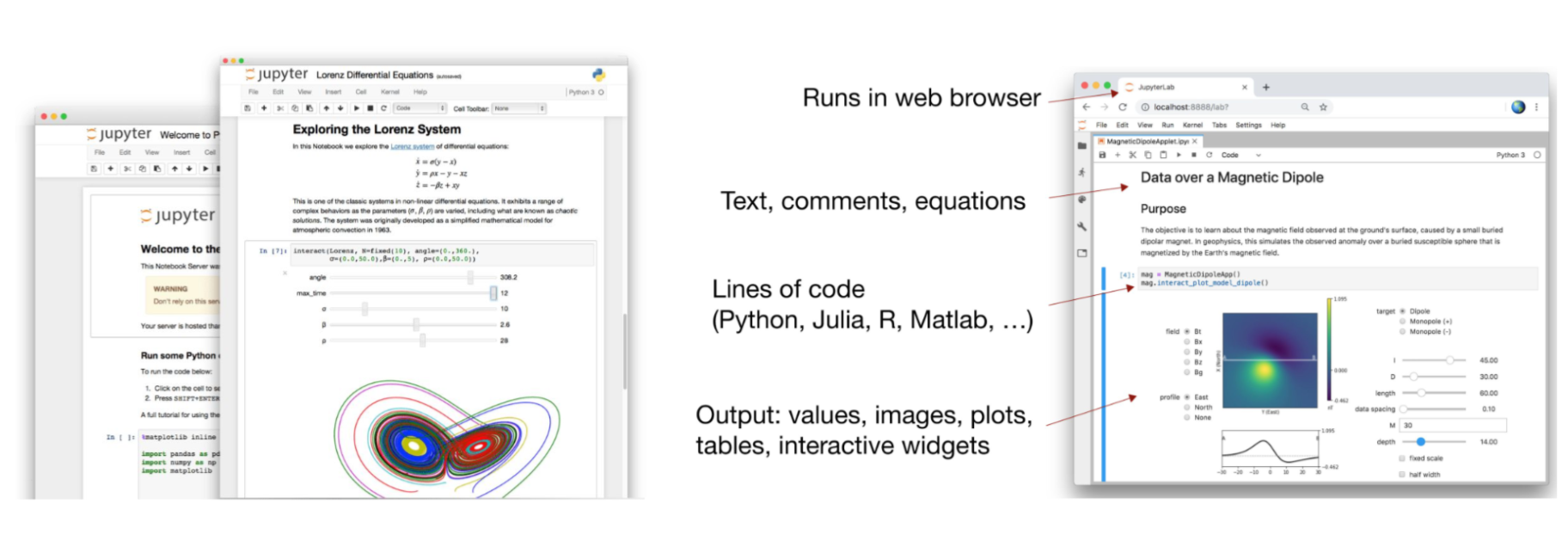
Before we get started#
We’re going to be working in Jupyter notebooks for most of this presentation!
To load yours, do the following:
In your terminal, type jupyter notebook and hit enter
OR
Open Anaconda Navigator and launch the Jupyter Notebook Application
If you’re not automatically directed to a webpage copy the URL (https://....) printed in the terminal and paste it in your browser
Understanding the Jupyter Notebook User Interface (UI)#
Jupyter Notebook is an interactive environment for writing, running, and visualizing code. When you open a Jupyter Notebook, you’ll see the following main components in its user interface
Files Tab#
The files tab provides an interactive view of the portion of the filesystem which is accessible by the user. This is typically rooted by the directory in which the notebook server was started.
The top of the files list displays the structure of the current directory. It is possible to navigate the filesystem by clicking on these breadcrumbs or on the directories displayed in the notebook list.
A new notebook can be created by clicking on the New dropdown button at the top of the list, and selecting the desired language kernel. We’ll be using Python, but Kernels for a plethora of other languages exist. An comprehenisve list of Jupyter Kernels can be found here.
Notebooks can also be uploaded to the current directory by dragging a notebook file onto the list or by clicking the Upload button at the top of the list.

The Notebook#
When a notebook is opened, a new browser tab will be created which presents the notebook user interface (UI). This UI allows for interactively editing and running the notebook document.
A new notebook can be created from the dashboard by clicking on the Files tab, followed by the New dropdown button, and then selecting the language of choice for the notebook.
An interactive tour of the notebook UI can be started by selecting Help -> User Interface Tour from the notebook menu bar.
Header#
At the top of the notebook document is a header which contains the notebook title, a menubar, and toolbar. This header remains fixed at the top of the screen, even as the body of the notebook is scrolled. The title can be edited in-place (which renames the notebook file), and the menubar and toolbar contain a variety of actions which control notebook navigation and document structure.

Toolbar#
At the top of each notebook, there’s a toolbar with several options:
File: This menu allows you to create, save, rename, download, and close your notebook.
Edit: Provides options to undo/redo, cut, copy, paste cells, and more.
View: Allows you to toggle visibility of the toolbar, line numbers, and more.
Insert: Lets you insert new code or markdown cells.
Cell: This is crucial for running code in Jupyter. You can use it to run, stop, or restart the code cells.
Kernel: Options for starting, restarting, or shutting down the kernel (explained below).
Widgets in Jupyter Notebook are UI controls (like sliders, buttons, and dropdowns) that allow you to create interactive elements in your notebook. With widgets, you can build interactive forms, visualizations, or even entire applications inside your notebook.
Help: Provides links to official Jupyter documentation and shortcuts.
Body#
The body of a notebook is composed of cells. Each cell contains either markdown, code input, code output, or raw text. Cells can be included in any order and edited at-will, allowing for a large amount of flexibility for constructing a narrative.
Markdown cells- These are used to build anicely formatted narrativearound thecodein the document. The majority of this lesson is composed ofmarkdown cells.to get a
markdown cellyou can either select thecelland useesc+mor viaCell -> cell type -> markdown
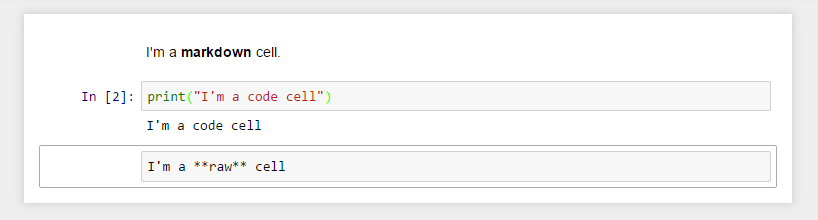
Code cells- These are used to define thecomputational codein thedocument. They come intwo forms:the
input cellwhere theusertypes thecodeto beexecuted,and the
output cellwhich is therepresentationof theexecuted code. Depending on thecode, thisrepresentationmay be asimple scalar value, or something more complex like aplotor aninteractive widget.
to get a
code cellyou can either select thecelland useesc+yor viaCell -> cell type -> code
print('hello')
Raw cells- These are used whentextneeds to be included inraw form, withoutexecutionortransformation.
Modality of the cell#
In/Out Labels: Each code cell is labeled with
In [ ]:before execution and updates toIn [1]:,In [2]:, etc., after it is run. The corresponding output is labeled asOut [1]:,Out [2]:, and so on.
The notebook user interface is modal. This means that the keyboard behaves differently depending upon the current mode of the notebook. A notebook has two modes: edit and command.
Edit mode is indicated by a green cell border and a prompt showing in the editor area. When a cell is in edit mode, you can type into the cell, like a normal text editor.

Command mode is indicated by a grey cell border. When in command mode, the structure of the notebook can be modified as a whole, but the text in individual cells cannot be changed. Most importantly, the keyboard is mapped to a set of shortcuts for efficiently performing notebook and cell actions. For example, pressing c when in command mode, will copy the current cell; no modifier is needed.

Kernel#
The kernel is the computational engine that runs the code you write in the notebook.
What is a kernel? A kernel is a process that runs your Python code and keeps track of your variable states, functions, imports, and other information throughout your session. When you run code in a notebook, the kernel executes the code and sends back the results to be displayed.
Types of Kernels: While Python is the most common language for Jupyter Notebooks, Jupyter can support other languages like R, Julia, and more by changing the kernel.
Kernel States:
Idle: The kernel is idle and ready to execute code.
Busy: The kernel is running code. You will see an asterisk
[*]next to the code cell when it’s running.Restarting: Sometimes, you may need to restart the kernel if it becomes unresponsive or if you want to clear all variables and reset the environment.
Managing the Kernel:
You can interrupt or restart the kernel using the “Kernel” menu in the toolbar.
Restarting the kernel clears all variables, functions, and code states, effectively resetting your environment.
If a cell is taking too long to execute, you can interrupt the kernel, which stops its execution.
Status Indicators#
Circle in the Upper-Right Corner: This indicates the status of the kernel:
Empty circle: The kernel is idle, and no code is currently running.
Filled circle: The kernel is busy running code.
Autosave and Checkpoints#
Jupyter Notebooks automatically save your progress periodically. However, you can manually save your notebook using File > Save and Checkpoint or by pressing Ctrl + S. Jupyter also creates checkpoints, so if something goes wrong, you can restore your notebook to a previously saved state.
Why Is the Kernel Important?#
The kernel is what makes Jupyter Notebooks interactive. It allows you to run Python code incrementally, cell by cell, and keep track of variables and data across different cells. This means you can run code, analyze data, and see results immediately without needing to run the entire program at once.
If your notebook session becomes slow or unresponsive, or you need to reset your workspace, you can simply restart the kernel. This will clear all the stored information, allowing you to start fresh without reopening the notebook.
Keyboard Navigation#
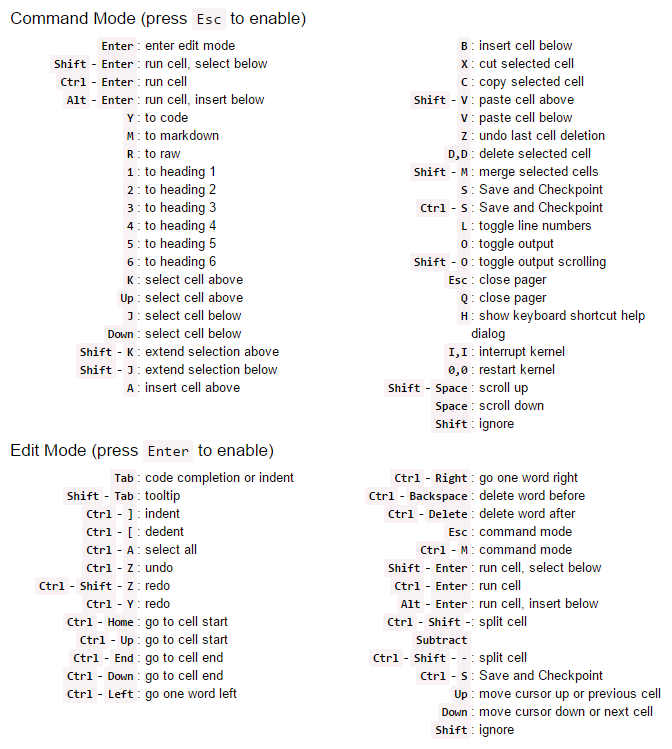
The modal user interface of the IPython Notebook has been optimized for efficient keyboard usage. This is made possible by having two different sets of keyboard shortcuts: one set that is active in edit mode and another in command mode.
The most important keyboard shortcuts are Enter, which enters edit mode, and Esc, which enters command mode.
In edit mode, most of the keyboard is dedicated to typing into the cell's editor. Thus, in edit mode there are relatively few shortcuts. In command mode, the entire keyboard is available for shortcuts, so there are many more possibilities.
The following images give an overview of the available keyboard shortcuts. These can viewed in the notebook at any time via the Help -> Keyboard Shortcuts menu item.
The following shortcuts have been found to be the most useful in day-to-day tasks:#
Basic navigation:
enter,shift-enter,up/k,down/jSaving the
notebook:sCell types:y,m,1-6,rCell creation:a,bCell editing:x,c,v,d,z,ctrl+shift+-Kernel operations:i,.
Additionally, you should get in the habit of using Tab to auto-complete your code. This not only speeds up things, but also makes sure that your variable and file names or the specific function you want to use is actually spelled correctly. In edit mode you should further get used to use the Ctrl + down/up/left/right shortcuts to quickly navigate trough your code cells.
Note: for Mac it is cmd instead of ctrl
Markdown#
Markdown is a lightweight markup language that is used to format plain text into structured documents. It’s widely used for writing documentation, web content, and readme files due to its simplicity and ease of readability. Markdown allows you to easily create formatted text such as headings, lists, links, and more without needing complex HTML or rich text editors.
Key Features of Markdown:
Plain Text: Markdown is written in plain text, making it easy to create and edit in any text editor.
Formatting Simplicity: Instead of using buttons or complex formatting, Markdown uses simple symbols (like # for headings or * for emphasis) to add structure and style to the text.
Readability: Even without rendering, Markdown files are easily readable. The plain text is structured and doesn’t require specialized software to interpret.
Markdown Cells#
Text can be added to IPython Notebooks using Markdown cells. Markdown is a popular markup language that is a superset of HTML. Its specification can be found here:
http://daringfireball.net/projects/markdown/
You can view the source of a cell by double clicking on it, or while the cell is selected in command mode, press Enter to edit it. Once a cell has been edited, use Shift-Enter to re-render it.
Markdown basics#
You can make text italic or bold.
You can build nested itemized or enumerated lists:
One
Sublist
This
Sublist - That - The other thing
Two
Sublist
Three
Sublist
Now another list:
Here we go
Sublist
Sublist
There we go
Now this
You can add horizontal rules:
Here is a blockquote (i.e the Zen of Python) :
Beautiful is better than ugly. Explicit is better than implicit. Simple is better than complex. Complex is better than complicated. Flat is better than nested. Sparse is better than dense. Readability counts. Special cases aren’t special enough to break the rules. Although practicality beats purity. Errors should never pass silently. Unless explicitly silenced. In the face of ambiguity, refuse the temptation to guess. There should be one– and preferably only one –obvious way to do it. Although that way may not be obvious at first unless you’re Dutch. Now is better than never. Although never is often better than right now. If the implementation is hard to explain, it’s a bad idea. If the implementation is easy to explain, it may be a good idea. Namespaces are one honking great idea – let’s do more of those!
You can add headings using Markdown’s syntax:
  # Heading 1

  ## Heading 2.1

  ## Heading 2.2

  ### Heading 3
Bold and Italic Text:
To make text bold, use double asterisks (
**) or underscores (__):**This is bold text** __This is also bold text__
For italic text, use single asterisks (
*) or underscores (_):*This is italic text* _This is also italic text_
Lists:
Markdown supports both ordered and unordered lists.
Unordered list:
- Item 1
- Item 2
- Item 3
Ordered list:
1. First item
2. Second item
3. Third item
Links:
To create a hyperlink, use this format:
[Link Text](http://example.com)
Images:
To embed images, use a similar syntax to links but add an exclamation mark (
!) at the beginning:
Blockquotes:
For blockquotes, use the
>symbol:> This is a quote.
Code Blocks:
Inline code can be written using backticks:
`This is inline code.`For code blocks, use triple backticks:
def function():
    print("Code block")
Embedded code#
You can embed code meant for illustration instead of execution in Python:
def f(x):
    """a docstring"""
    return x**2
or other languages:
if (i=0; i<n; i++) {
  printf("hello %d\n", i);
  x += 4;
}
Github flavored markdown (GFM)#
The Notebook webapp supports Github flavored markdown meaning that you can use triple backticks for code blocks
print "Hello World"
console.log("Hello World")
Gives
print "Hello World"
console.log("Hello World")
And a table like this :
This |
is |
|---|---|
a |
table |
or A nice HTML Table
This |
is |
|---|---|
a |
table |
General HTML#
Because Markdown is a superset of HTML you can even add things like HTML tables:
| Header 1 | Header 2 |
|---|---|
| row 1, cell 1 | row 1, cell 2 |
| row 2, cell 1 | row 2, cell 2 |
Local files#
If you have local files in your Notebook directory, you can refer to these files in Markdown cells directly:
[subdirectory/]<filename>
For example, in the static folder, we have the logo:
<img src="static/pfp_logo.png" />

These do not embed the data into the notebook file, and require that the files exist when you are viewing the notebook.
Security of local files#
Note that this means that the IPython notebook server also acts as a generic file server for files inside the same tree as your notebooks. Access is not granted outside the notebook folder so you have strict control over what files are visible, but for this reason it is highly recommended that you do not run the notebook server with a notebook directory at a high level in your filesystem (e.g. your home directory).
When you run the notebook in a password-protected manner, local file access is restricted to authenticated users unless read-only views are active.
Code cells#
When executing code in IPython, all valid Python syntax works as-is, but IPython provides a number of features designed to make the interactive experience more fluid and efficient. First, we need to explain how to run cells. Try to run the cell below!
import pandas as pd

print("Hi! This is a cell. Click on it and press the ▶ button above to run it")
You can also run a cell with Ctrl+Enter or Shift+Enter. Experiment a bit with that.
Tab Completion#
One of the most useful things about Jupyter Notebook is its tab completion.
Try this: click just after read_csv( in the cell below and press Shift+Tab 4 times, slowly. Note that if you’re using JupyterLab you don’t have an additional help box option.
pd.read_csv(
After the first time, you should see this:

After the second time:
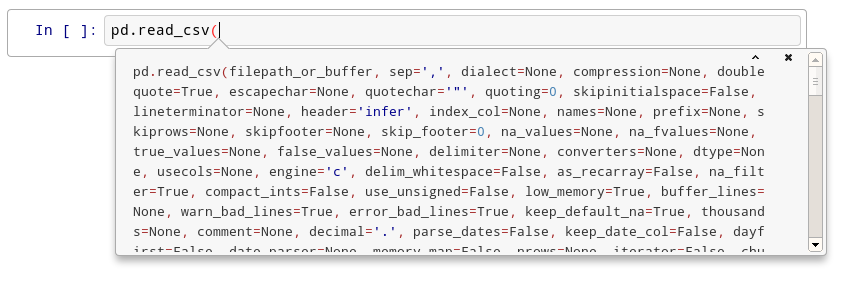
After the fourth time, a big help box should pop up at the bottom of the screen, with the full documentation for the read_csv function:

This is amazingly useful. You can think of this as “the more confused I am, the more times I should press Shift+Tab”.
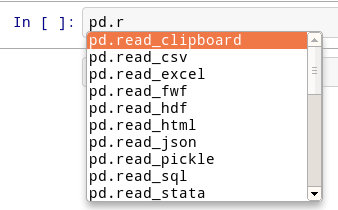
Okay, let’s try tab completion for function names!
pd.r
You should see this:
Get Help#
There’s an additional way on how you can reach the help box shown above after the fourth Shift+Tab press. Instead, you can also use obj? or obj?? to get help or more help for an object.
pd.read_csv?
Writing code#
Writing code in a notebook is pretty normal.
def print_10_nums():
    for i in range(10):
        print(i)
print_10_nums()
If you messed something up and want to revert to an older version of a code in a cell, use Ctrl+Z or to go back Ctrl+Y.
For a full list of all keyboard shortcuts, click on the small keyboard icon in the notebook header or click on Help > Keyboard Shortcuts.
The interactive workflow: input, output, history#
Notebooks provide various options for inputs and outputs, while also allowing to access the history of run commands.
2+10
As this notation get’s messy real quick, use other ways to access earlier outputs using the _N and Out[N] variables:
Out[10]
Previous inputs are available, too:
In[11]
and to be even more explicit use %history
%history -n 1-5
Accessing the underlying operating system#
Through notebooks you can also access the underlying operating system and communicate with it as you would do in e.g. a terminal via bash:
# Get the current directory
current_directory = !cd
print("Current directory:", current_directory[0])

# List files and directories
files = !dir
print("My current directory's files:")
print(files)
Magic functions#
IPython has all kinds of magic functions. Magic functions are prefixed by % or %%, and typically take their arguments without parentheses, quotes or even commas for convenience. Line magics take a single % and cell magics are prefixed with two %%.
Some useful magic functions are:
Magic Name |
Effect |
|---|
You can run %magic to get a list of magic functions or %quickref for a reference sheet.
%magic
Line vs cell magics:
%timeit list(range(1000))
%%timeit
list(range(10))
list(range(100))
Line magics can be used even inside code blocks:
for i in range(1, 5):
    size = i*100
    print('size:', size, end=' ')
    %timeit list(range(size))
Magics can do anything they want with their input, so it doesn’t have to be valid Python:
%%bash
echo "My shell is:" $SHELL
echo "My disk usage is:"
df -h
Another interesting cell magic: create any file you want locally from the notebook:
%%writefile test.txt
This is a test file!
It can contain anything I want...

And more...
!cat test.txt
Let’s see what other magics are currently defined in the system:
%lsmagic
Writing latex#
Let’s use %%latex to render a block of latex:
%%latex
$$F(k) = \int_{-\infty}^{\infty} f(x) e^{2\pi i k} \mathrm{d} x$$
Running normal Python code: execution and errors#
Not only can you input normal Python code, you can even paste straight from a Python or IPython shell session:
>>> # Fibonacci series:
... # the sum of two elements defines the next
... a, b = 0, 1
>>> while b < 10:
...     print(b)
...     a, b = b, a+b
In [1]: for i in range(10):
   ...:     print(i, end=' ')
   ...:
And when your code produces errors, you can control how they are displayed with the %xmode magic:
%%writefile mod.py

def f(x):
    return 1.0/(x-1)

def g(y):
    return f(y+1)
Now let’s call the function g with an argument that would produce an error:
import mod
mod.g(0)
%xmode plain
mod.g(0)
%xmode verbose
mod.g(0)
The default %xmode is “context”, which shows additional context but not all local variables. Let’s restore that one for the rest of our session.
%xmode context
Running code in other languages with special %% magics#
%%perl
@months = ("July", "August", "September");
print $months[0];
%%ruby
name = "world"
puts "Hello #{name.capitalize}!"
Raw Input in the notebook#
Since 1.0 the IPython notebook web application supports raw_input.
enjoy = input('Are you enjoying this tutorial? ')
print('Answer:', enjoy)
Plotting in the notebook#
Notebooks support a variety of fantastic plotting options, including static and interactive graphics. This magic configures matplotlib to render its figures inline:
%matplotlib inline
import numpy as np
import matplotlib.pyplot as plt
x = np.linspace(0, 2*np.pi, 300)
y = np.sin(x**2)
plt.plot(x, y)
plt.title("A little chirp")
fig = plt.gcf()  # let's keep the figure object around for later...
import plotly.figure_factory as ff

# Add histogram data
x1 = np.random.randn(200) - 2
x2 = np.random.randn(200)
x3 = np.random.randn(200) + 2
x4 = np.random.randn(200) + 4

# Group data together
hist_data = [x1, x2, x3, x4]

group_labels = ['Group 1', 'Group 2', 'Group 3', 'Group 4']

# Create distplot with custom bin_size
fig = ff.create_distplot(hist_data, group_labels, bin_size=.2)
fig.show()
Saving a Notebook#
Jupyter Notebooks autosave, so you don’t have to worry about losing code too much. At the top of the page you can usually see the current save status:
Last Checkpoint: 2 minutes ago (unsaved changes)
Last Checkpoint: a few seconds ago (autosaved)
If you want to save a notebook on purpose, either click on File > Save and Checkpoint or press Ctrl+S.
To Jupyter & beyond#