
Introduction II#
This week, we will explore the basics of Jupyter Notebooks and Colab notebooks. We will familiarize with the applications and dive right into our first Python programming session!
Objectives 📍#
Learn how to open Jupyter notebooks locally and create your own Jupyter notebook
Learn how to open Colab notebooks and create your own notebook
Learn basic and efficient usage of the Jupyter ecosystem & notebooks
What is Jupyter & how to utilize Jupyter notebooks
Ask and answer questions
Materials 📓#
Please see the rendered version of the jupyter notebook Introduction II - jupyter notebooks in the ToC on the left.
Homework 🖥️✍🏽📖#
You should create a jupyter notebook with
mandatory:
3 different cells: - 1 rendered markdown cell within which you name your favorite movie and describe why you like it via
max. 2 sentences - 1 code cell with an equation (e.g.1+1,(a+b)/(c+d), etc.) - 1 raw cell with your favorite snackoptional: try to include a picture of your favorite animal
save the notebook and e-mail it to Markov@psych.uni-frankfurt.de
Please note that the deadline for the assignment is: XXX.
Open jupyter notebook#
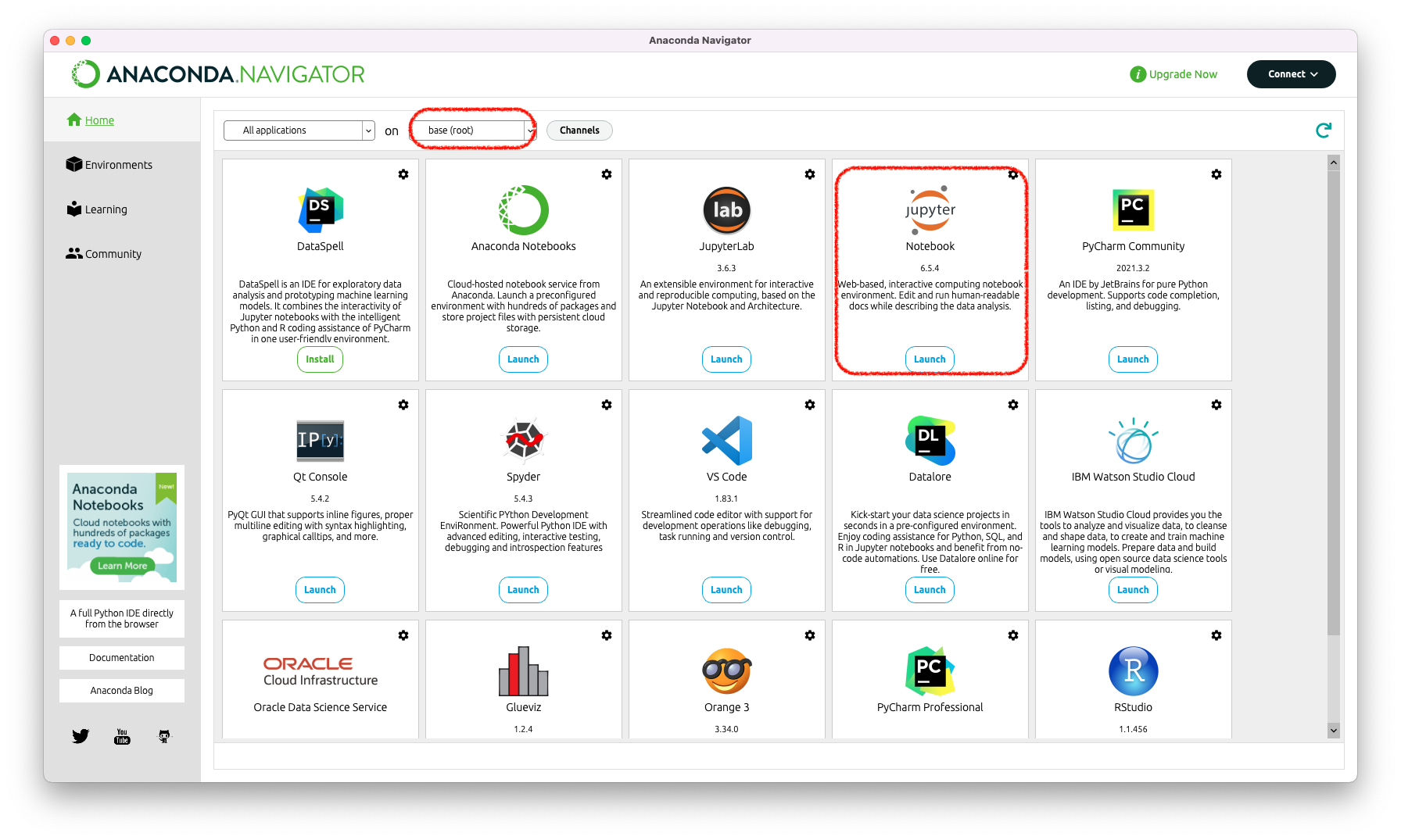
There are different ways to open the program. If you installed Anaconda, you can open the Anaconda Navigator and from your base envirnoment, jupyter notebooks should have already been installed. Just click on Launch and youre ready to go!
If you installed miniconda, you won’t have the Navigagor. Instead, what you should do, is open your Terminal and type in jupyter notebook. Make sure your base environment is activated. If you can’t see the (base) that you see in the picture, type in conda init or conda activate base.
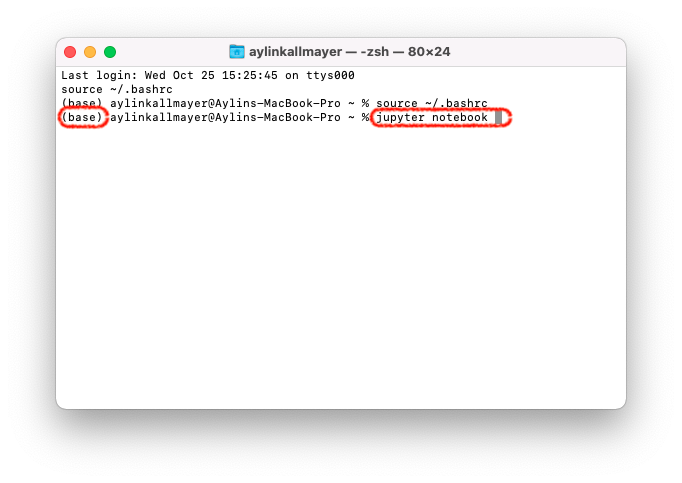
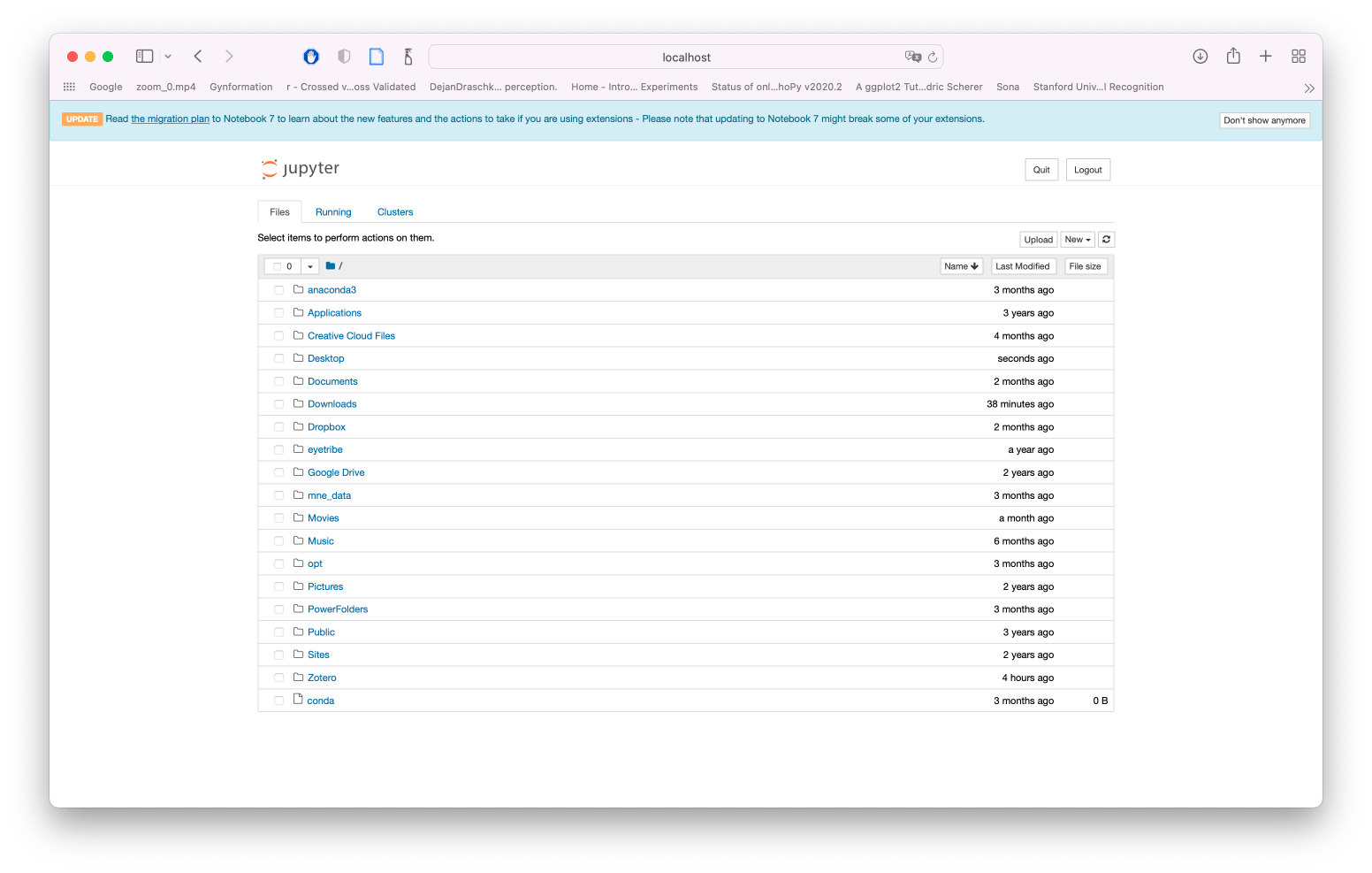
If you start jupyter notebook from the terminal, a lot of text will appear in your terminal which has something to do with the server that the notebook is hosted on locally. It should also automatically open a homepage on your browser, if it doesn’t, copy paste the link from your terminal and open it in your browser.
Your jupyter homepage should look something like this:
Create your own notebook#
The last thing I want you to do, is open your own notebook and save it. Click on New and select python 3 (ipykernel). It will create a new empty notebook for you with a python 3 kernel.
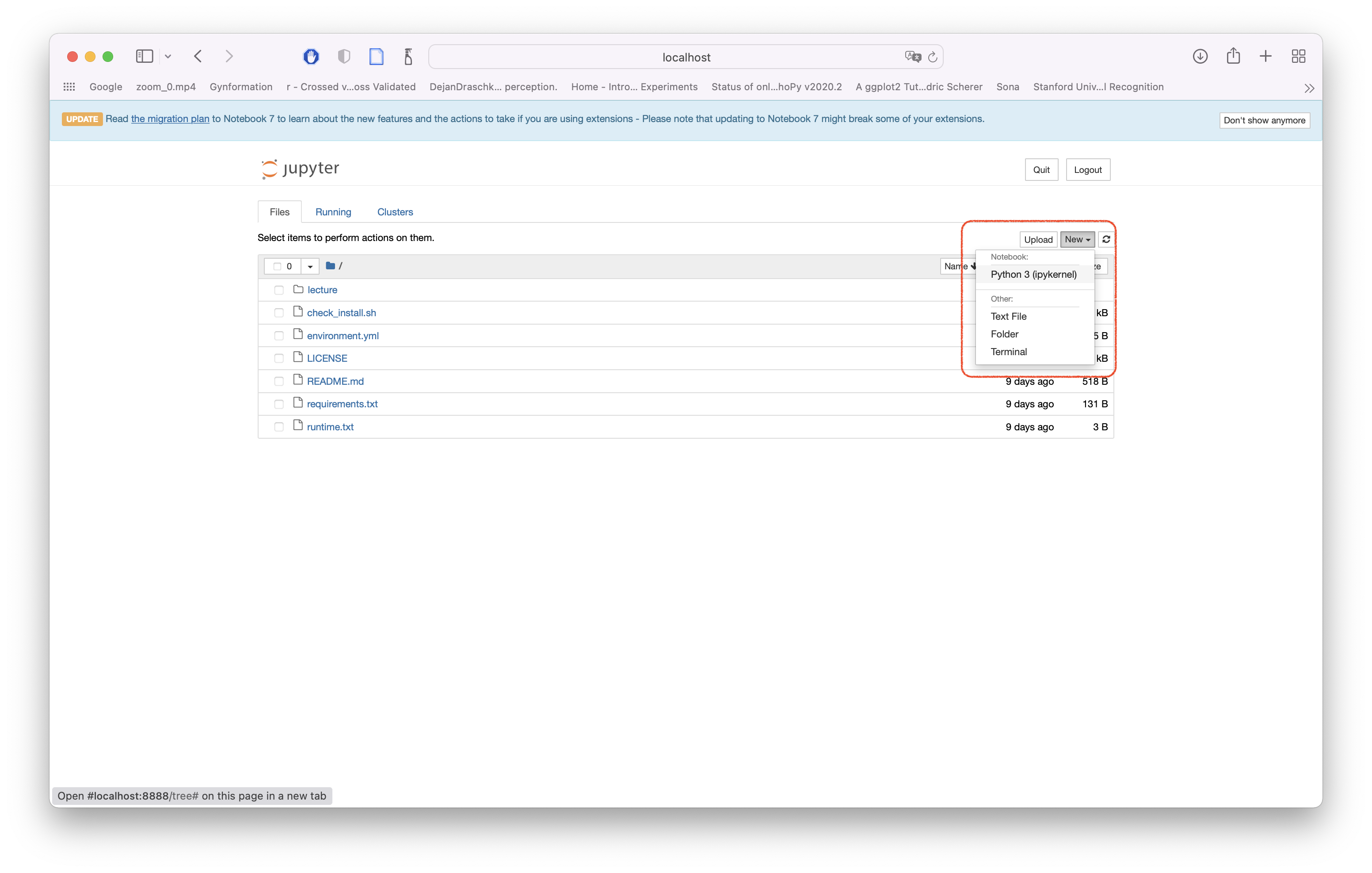
Tada! now you can save this notebook under File save as. We will go from here next time. If you’re eager to explore more, feel free to do so, for example over here.
Optional/reading/further materials 📓#
Fernando Perez’ presentation on From interactive exploration to reproducible data science: Jupyter from NeuroHackademy 2020.